Fire Dragon Login Problem: Can't Access Account on Mobile App
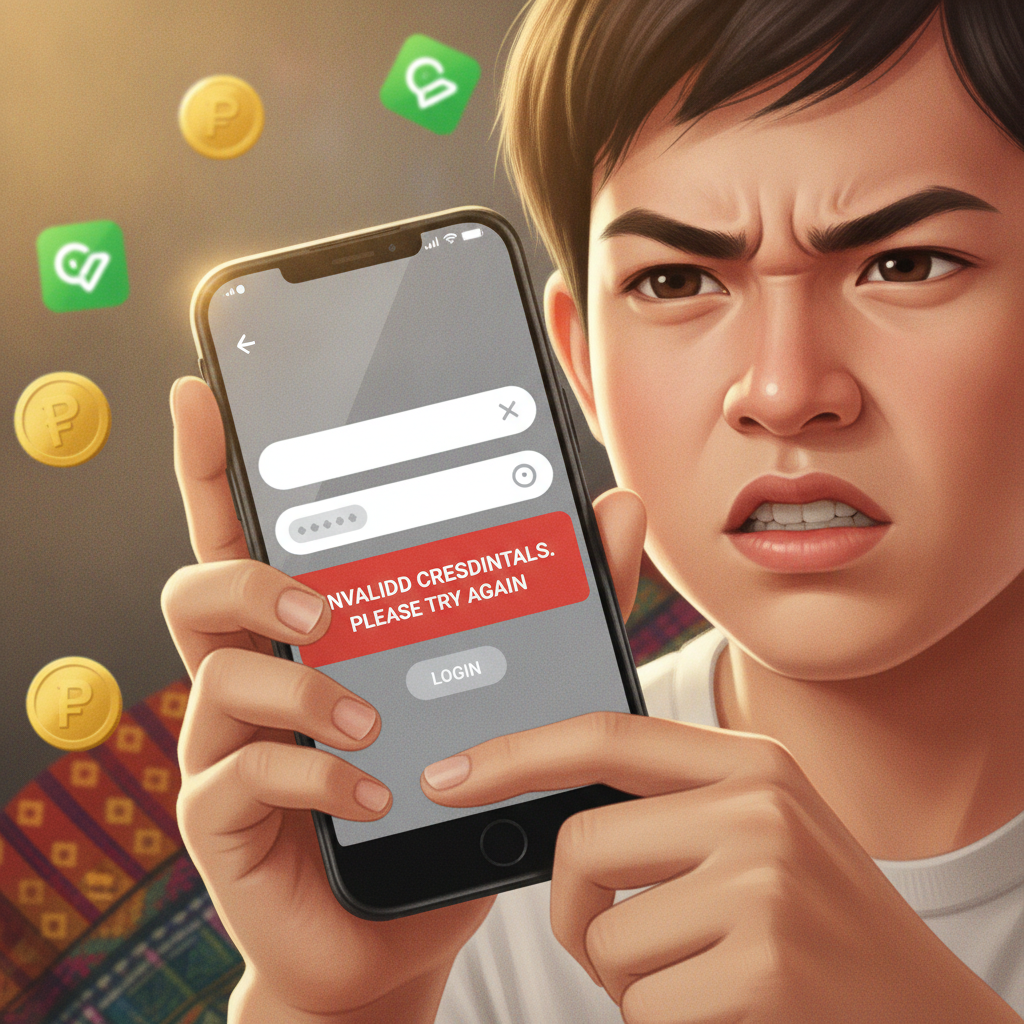
Common Login Error Messages on Fire Dragon
When you try to log into your Fire Dragon account on mobile, you may see one of several error messages. Understanding what each one means helps you fix the problem faster.
"Incorrect username or password" is the most common message. It appears when the credentials you entered do not match what Fire Dragon has on file. Check that your username or registered mobile number is typed exactly as you created it, including any digits or punctuation. Passwords are case-sensitive, so "Dragon123" is different from "dragon123".
"Account temporarily locked" or "Too many failed login attempts"** means Fire Dragon has disabled login access after multiple incorrect password tries. This is a security measure to protect your account from unauthorized access. The lock usually lifts automatically after 15 to 30 minutes, though some players report waiting up to one hour. Do not keep trying to log in during this period, as it may extend the lockout.
"Server unavailable" or "Unable to connect"** indicates a network or server issue. Fire Dragon's system may be undergoing maintenance, or your mobile data or Wi-Fi connection may be unstable. You can check your internet connection by opening another website or app. If those load normally, the issue is likely on Fire Dragon's side. There is no published maintenance schedule, so you may need to wait 10 to 20 minutes and try again.
"Session expired" appears if you were logged in previously but left the app idle for too long. Fire Dragon automatically logs you out after a period of inactivity for security. Simply enter your credentials again to start a new session.
"Account under verification" means Fire Dragon's compliance team is reviewing your documents or account activity. This can happen if you recently submitted ID verification, changed your registered mobile number, or triggered an internal security check. You will need to wait for Fire Dragon support to complete the review; login access returns once verification is finished.
Resetting Your Fire Dragon Password from the App and Mobile Browser
If you have forgotten your password or suspect it was entered incorrectly too many times, resetting it is straightforward.
On the Fire Dragon Android APK or iOS app:
- Open the app and tap "Login" on the home screen.
- Look for a "Forgot Password?" or "Reset Password" link below the password field. Tap it.
- Enter the mobile number or email address you used during registration.
- Fire Dragon will send a verification code via SMS or email, usually within one to two minutes. Check your messages and spam folder.
- Enter the code in the app, then create a new password. Use at least eight characters, mixing letters and numbers. Avoid reusing old passwords.
- Confirm the new password and tap "Submit" or "Save".
You should be able to log in immediately with the new password.
If the app link does not work or you cannot open the app at all, use your mobile browser:
- Open Chrome, Safari, or any browser on your phone and go to the Fire Dragon mobile site. Type the Fire Dragon URL into the address bar (do not rely on search results, as phishing sites sometimes appear).
- Tap the "Login" button, then select "Forgot Password?".
- Follow the same steps: enter your registered mobile number or email, receive the code, and set a new password.
After resetting your password on the mobile site, you can return to the app and log in with the updated credentials.
Important: If you do not receive the SMS or email code within five minutes, check that the mobile number or email on file is still active. You may need to contact Fire Dragon support on Facebook Messenger or the in-app live chat (accessible from the logged-out home screen on some versions) to update your contact details.
Clearing App Cache and Reinstalling the APK When Login Loops Occur
A login loop happens when you enter your credentials, the app appears to accept them, but then bounces you back to the login screen without error. This is often caused by corrupted cache data on Android or a partial app update.
Clearing the app cache on Android:
- Go to your phone's Settings > Apps or Application Manager.
- Scroll to Fire Dragon and tap it.
- Tap Storage, then Clear Cache. (Do not tap "Clear Data" unless you are prepared to re-download game assets; clearing data removes saved preferences but does not delete your account.)
- Return to the home screen and open Fire Dragon again. Try logging in.
Clearing cache solves login loops in about half of reported cases. If the problem persists, reinstalling the APK is the next step.
Reinstalling the Fire Dragon APK on Android:
- Go to Settings > Apps > Fire Dragon and tap Uninstall. This removes the app but does not delete your account or balance on Fire Dragon's servers.
- Open your mobile browser and visit the official Fire Dragon site.
- Tap the "Download" or "Android APK" button. The APK file will download to your device.
- If prompted, allow installation from unknown sources in Settings > Security > Install unknown apps > select your browser > toggle "Allow from this source".
- Open the downloaded APK and tap Install.
- Once installed, open the app and log in with your username and password.
For iOS users, Fire Dragon may distribute the app via a direct download link or TestFlight, depending on App Store approval status. If you experience login loops on iOS:
- Delete the Fire Dragon app from your home screen.
- Restart your iPhone.
- Go to the Fire Dragon mobile site in Safari, tap the download link, and follow the installation profile steps.
- You may need to trust the developer certificate in Settings > General > VPN & Device Management.
After reinstalling, login problems caused by corrupted app files should be resolved.
When to Use the Desktop Site vs. Mobile App for Login Issues
If you continue to have trouble logging in through the mobile app, switching to the desktop site can help you confirm whether the issue is app-specific or account-wide.
Use the desktop site when:
- The mobile app shows "Server unavailable" or crashes on the login screen. The desktop version runs independently and may still be accessible.
- You have cleared cache and reinstalled the APK, but login loops persist. Logging in via desktop confirms your credentials are correct and your account is active.
- You need to contact support with screenshots or detailed account information. The desktop layout makes it easier to navigate account settings and live chat.
To access Fire Dragon from a desktop or laptop:
- Open a web browser (Chrome, Edge, Firefox, Safari).
- Type the Fire Dragon URL into the address bar.
- Click "Login" and enter your mobile number or username and password.
If login succeeds on desktop but fails on mobile, the problem is with the app installation or your phone's settings. Try reinstalling the APK again or testing on a different Android device if available.
If login fails on both mobile and desktop with the same error message, the issue is account-related. Common causes include an account lock due to failed verification, a pending withdrawal review, or a restriction placed by Fire Dragon's compliance team. In these cases, reach out to Fire Dragon support through the contact options on the logged-out homepage: typically live chat, Facebook Messenger, or a support email address.
Note: Some players in the provinces report intermittent connectivity when using mobile data on certain networks. If you see "Unable to connect" errors frequently, switch between mobile data and Wi-Fi, or test the app in an area with stronger signal.
Responsible Gambling Reminder
Fire Dragon is for players aged 21 and over only. If you are having trouble accessing your account and feel the urge to deposit or bet more than you can afford while troubleshooting, take a break. Set deposit limits in your account settings once you regain access, and reach out to support if you need help with self-exclusion or cooling-off periods. Gambling should remain a form of entertainment, not a way to solve financial problems.
This guide covers the most common Fire Dragon login problems on mobile and the steps to resolve them. For questions about GCash or Maya withdrawals, processing times, or APK installation on specific Android versions, see the other help articles on this site.